Know your money. Know your next step.
Retirement Guide
Build your plan, test a different retirement year, and explore a range of possible outcomes.
1. Build your plan
Open Retirement → Inputs. Review your starting balance, current age, first retirement year, contributions, spending, income and the return, inflation and tax assumptions shown. Follow each field’s monthly or annual units.
Review Adjusted Current Costs rather than assuming today’s spending will continue unchanged. Keep the retirement year separate from the First Social Security Year; benefits begin according to their configured start year.
2. Check housing and healthcare
The mortgage input excludes property tax. Enter property tax separately, following the units shown. If your mortgage payment includes escrowed property tax, separate it to avoid counting tax twice. Property tax can continue after the mortgage ends.
Enter pre- and post-Medicare healthcare costs as monthly amounts in today’s dollars. The app applies inflation. Remove the same costs from Adjusted Current Costs when you represent them in the separate healthcare fields, so they are not counted twice. Review the Medicare eligibility age used by your plan.
3. Explore spending phases
Adjust spending by retirement phase lets you use Go-Go, Slow-Go and No-Go lifestyle-spending assumptions. Start with the feature off to understand your baseline, then review the phase ages and percentages.
A value of 90% means 90% of the affected lifestyle spending, a 10% reduction. It does not reduce all costs: separate healthcare, mortgage interest and property tax are not phase-adjusted. Phase names describe your assumptions, not predictions about your future lifestyle.
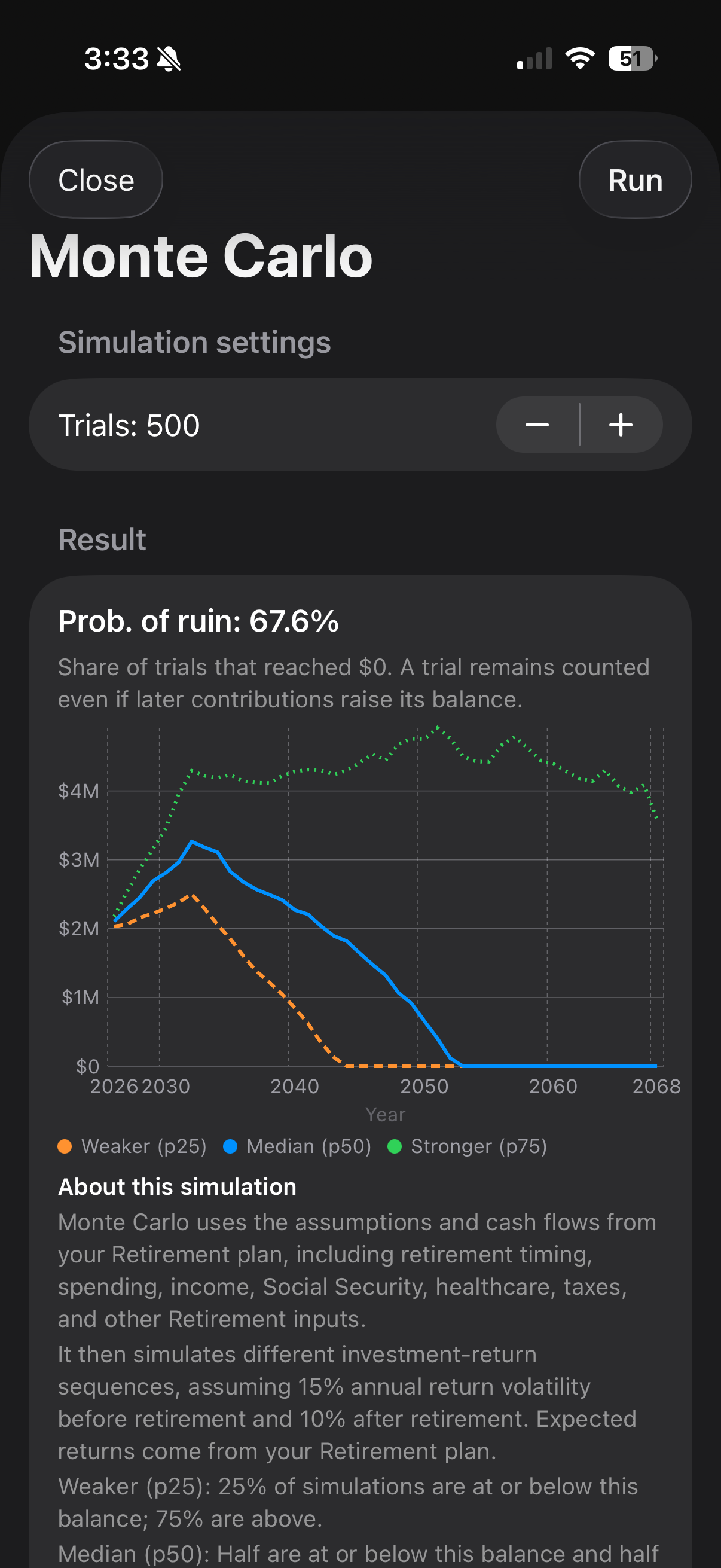
4. Read the Retirement Summary
Review the current-year-end balance, projected balance at retirement, and any year in which funds are projected to run out. Inspect the table around retirement, Social Security starting, mortgage payoff and spending-phase changes.
No depletion shown means none is projected within the calculated period under those assumptions. If a changed input does not affect a particular withdrawal, check for a manual override.
5. Compare a retirement year
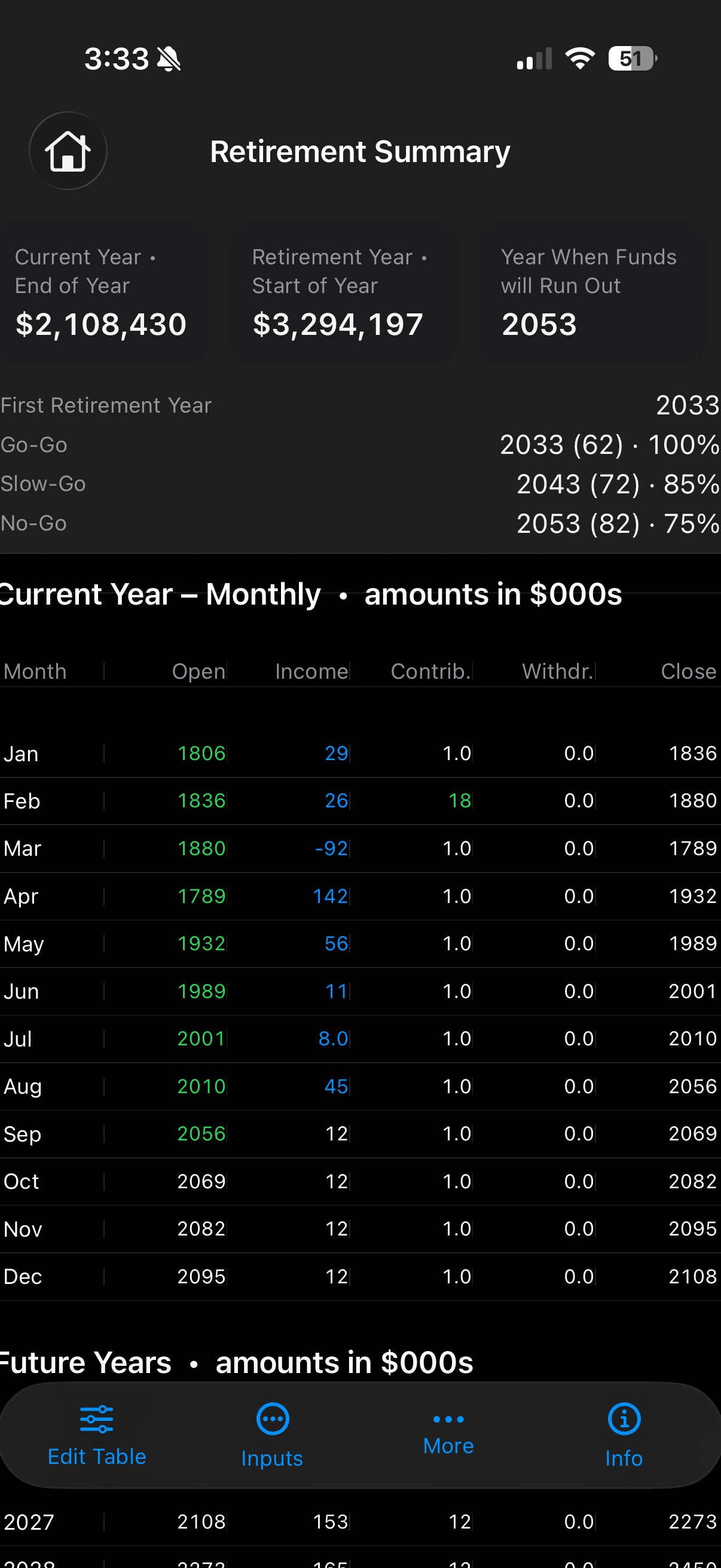
- Open What-If in Retirement.
- Review the Current Plan retirement year. Adjust the What-If year with the minus or plus controls.
- Select Run Comparison.
- Compare the retirement year, retirement-start balance and annual withdrawals side by side. Check the comparison period shown. A later retirement date can also change the costs projected for that later year.
6. Explore Monte Carlo outcomes
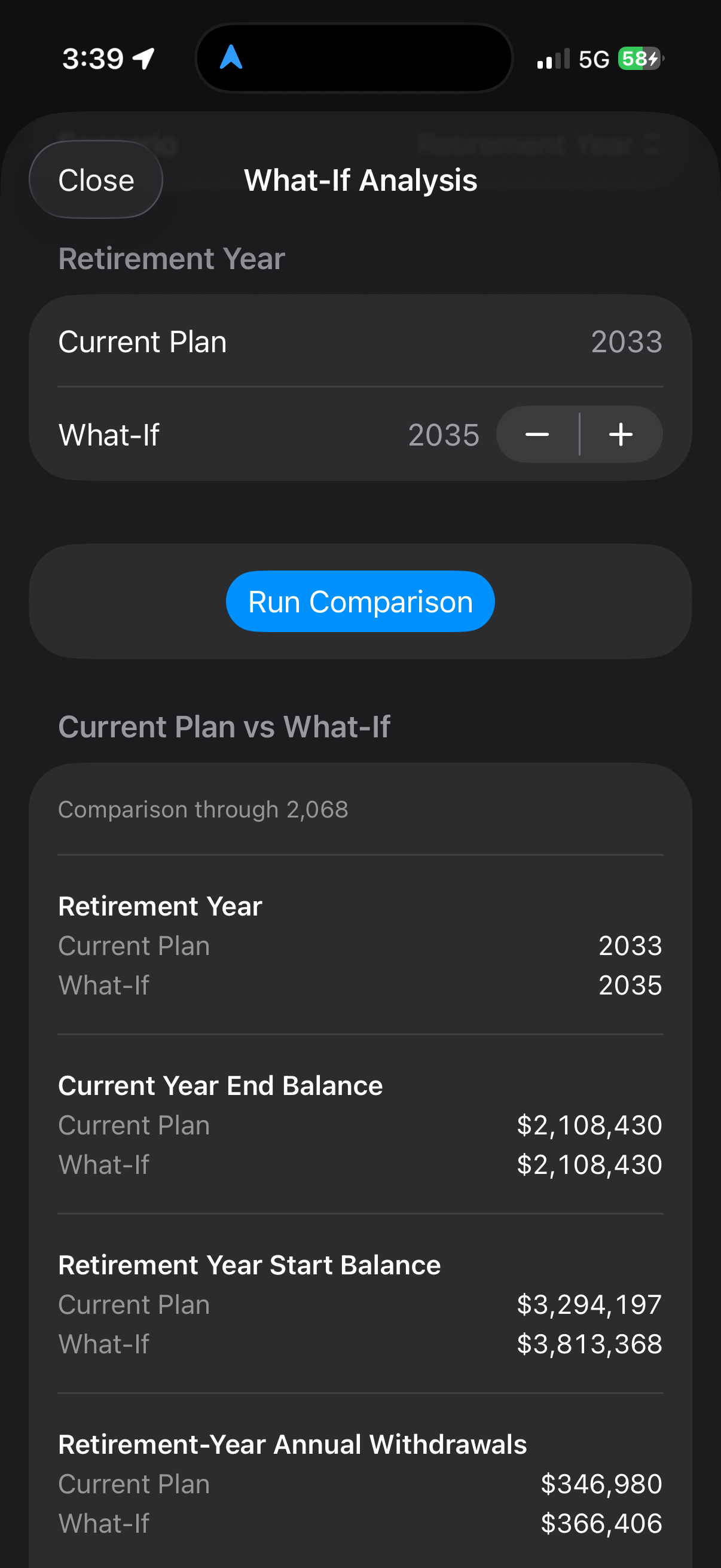
- Open Monte Carlo in Retirement. Review the on-screen explanation of the simulation and its assumptions.
- Choose the number of trials using the available controls, then select Run.
- Review the range of simulated balance paths alongside the reported probability of ruin.
Probability of ruin is the share of trials in which the balance reaches zero, even if later contributions allow it to recover. It is a result within the simulation, not a personal probability guaranteed to apply in real life.
The weaker (25th percentile), median (50th) and stronger (75th) curves describe the distribution of simulated balances. They are not worst-case and best-case limits. Repeated runs can differ because simulated returns vary. Check the assumptions displayed in your app before comparing a simulation with the standard forecast.