Know your money. Know your next step.
Cashflow Guide
See when money comes in, when it goes out, and where your cash cushion may get tight.
1. Set up your cashflow
- Open Cashflow → More → Accounts and check the account you are modeling.
- Review the opening balance and its starting period. Do not use a balance that already includes payments and then include those payments again after that starting point.
- Open More → Recurring Items for monthly income and expenses. Enter a positive amount, choose Income or Expense, and check the payment day and active dates.
- Use More → One-time Items for a specific dated payment, such as a repair or bonus. Check seasonal selections if the item repeats in selected months.
2. Choose the right kind of change
One different payment: use an occurrence override for that individual amount. An ongoing change: use a dated recurring amount change so earlier months retain their previous amounts.
For example, a single unusually high utility bill is different from a permanent monthly price increase. Review saved effective dates after editing. Recurring monthly items should not be assumed to reproduce a weekly or every-two-week payroll schedule; use dated entries to represent the actual timing.
3. Read the balances
Move through the monthly transaction list, then open More → Summary. Open is the starting balance; High and Low describe the reported extremes for the month; Close is the ending balance. Review the low as well as the close.
Your threshold is a chosen cash cushion. Below zero means the modeled payments require more cash than is available. Daily projections do not simulate the exact order in which a bank processes payments during a day.
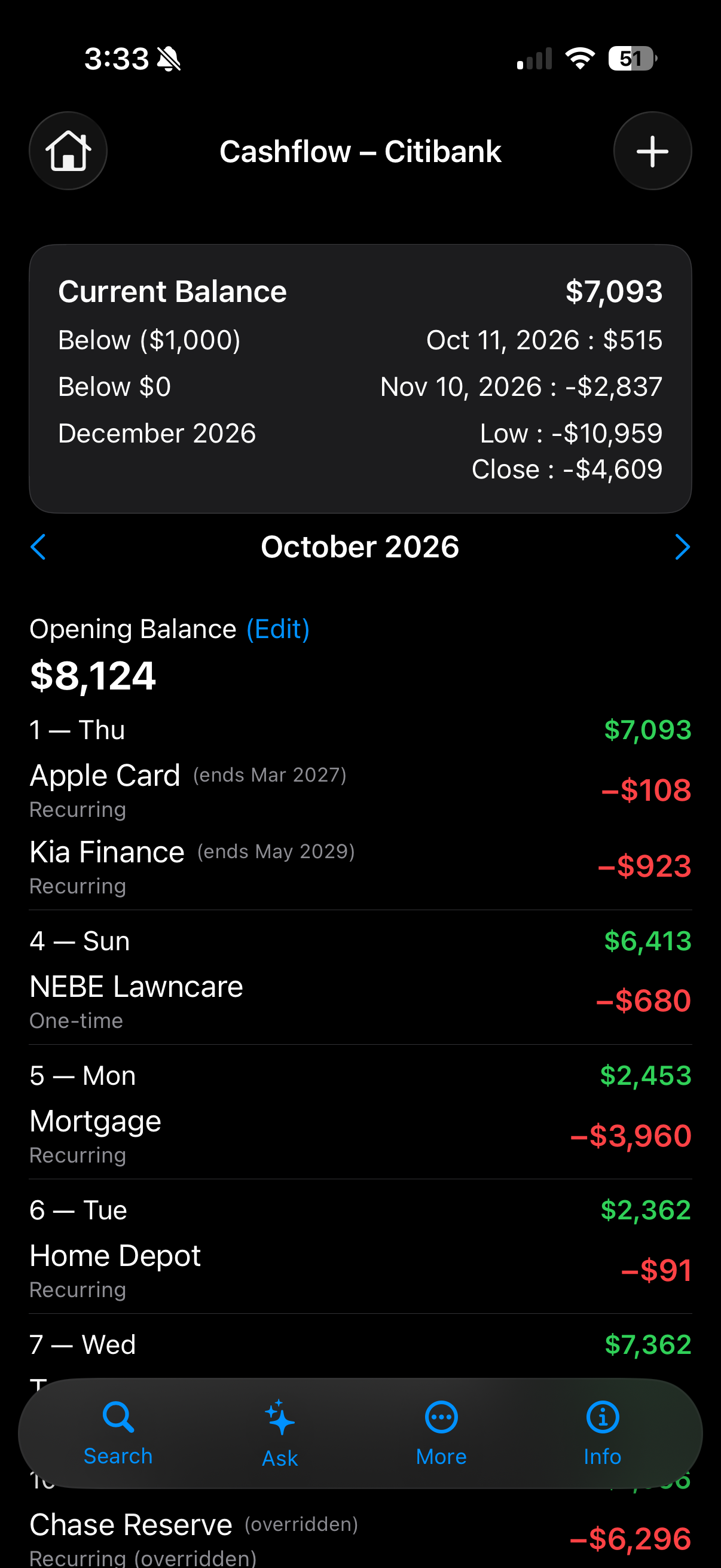
4. Understand income and expenses
Open More → Income & Expenses to see recurring and one-time income and expense totals. Tap a monthly amount to inspect its contributing transactions. Seasonal items remain in the One-Time reporting category.
For transfers you do not want counted as income or spending, edit the item and select Exclude from Income & Expense Summary. It still affects the cash balance. The checkbox, not the word “Transfer” in its name, controls reporting.
Use More → Balance Chart for the trend and Search to locate transactions.
5. Explore a one-time change
In Cashflow Ask, start with an example shown in the app. Try a clear amount and date, such as “What if I have a one-time expense of $1,500 on December 15, 2026?” Check the interpreted type, amount and date.
The scenario is temporary. Selecting Save This One-Time Item adds it to your ongoing cashflow, so save only when you want that item included.
If a balance looks wrong
- Check the account, period, transaction type, payment dates and active months.
- Review dated amount changes and individual occurrence overrides.
- Check the opening balance. An opening override establishes a new starting point and can stop earlier changes carrying forward. Use Clear Override in its editor to restore normal carry-forward.
- If report totals differ from balance changes, check excluded transfers and opening overrides.